Walkthrough
Quick Enable
Enable in your CannonWMS dashboard:
Settings → Features → Distribution Centers
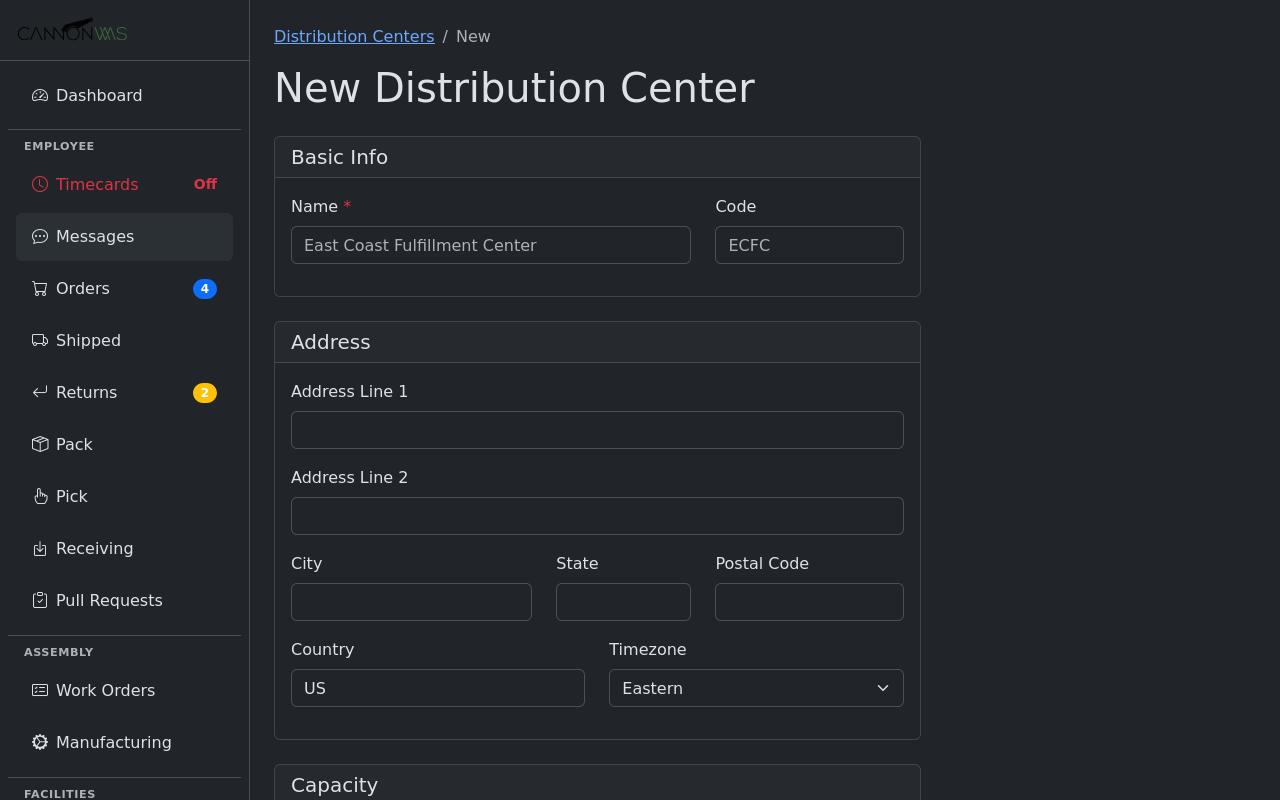
Create a distribution center by naming it, setting its address, and defining total floor space. Each DC acts as a container for one or more warehouses. For 3PL operators, each DC typically represents a physical building where multiple clients' inventory is stored and fulfilled.
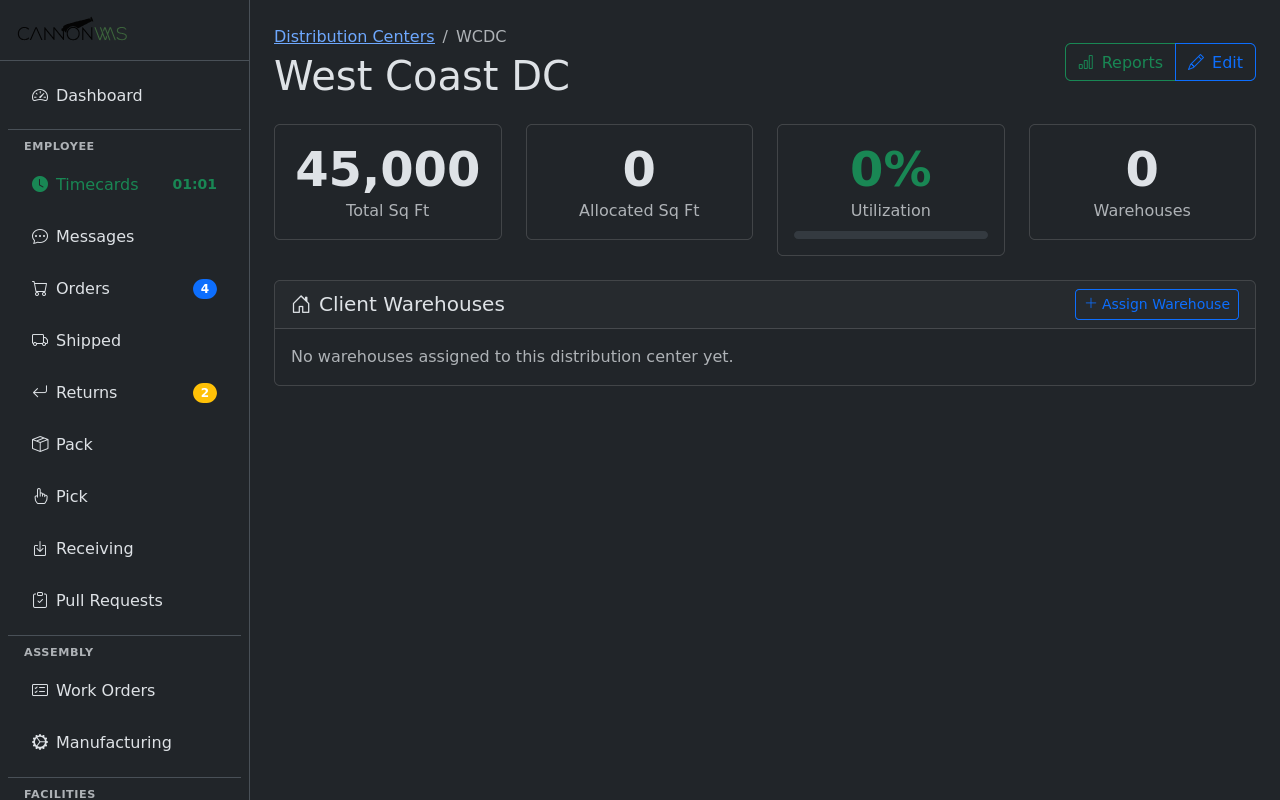
Assign warehouses to the DC and allocate floor space. Here the Demo Warehouse is assigned with 5,000 sq ft and 100 pallet positions, showing 11.1% utilization of the DC's total 45,000 sq ft. The dashboard tracks SKU count, total units, and locations per warehouse in real time.
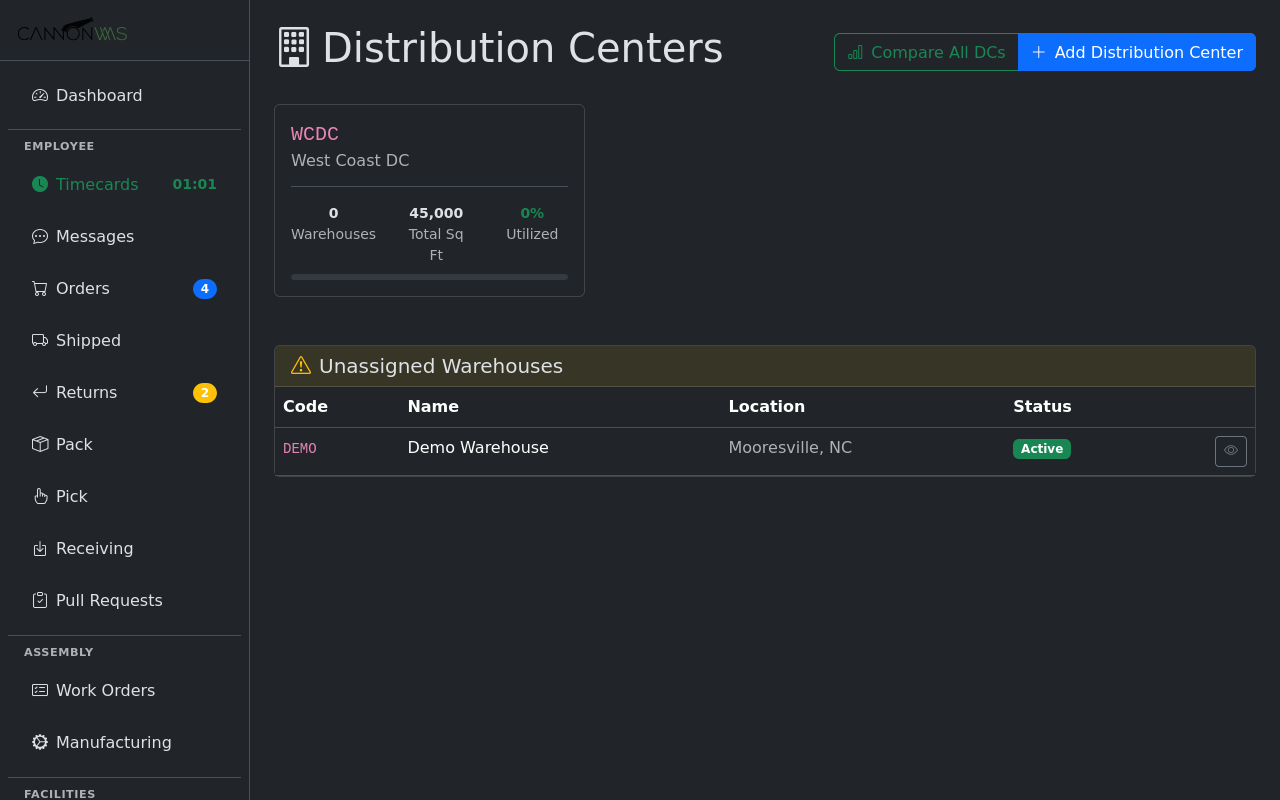
The DC list shows all distribution centers with aggregate metrics. Track total floor space, allocated space per client warehouse, and remaining availability. This is your at-a-glance view for capacity planning and deciding when to onboard new clients or expand.
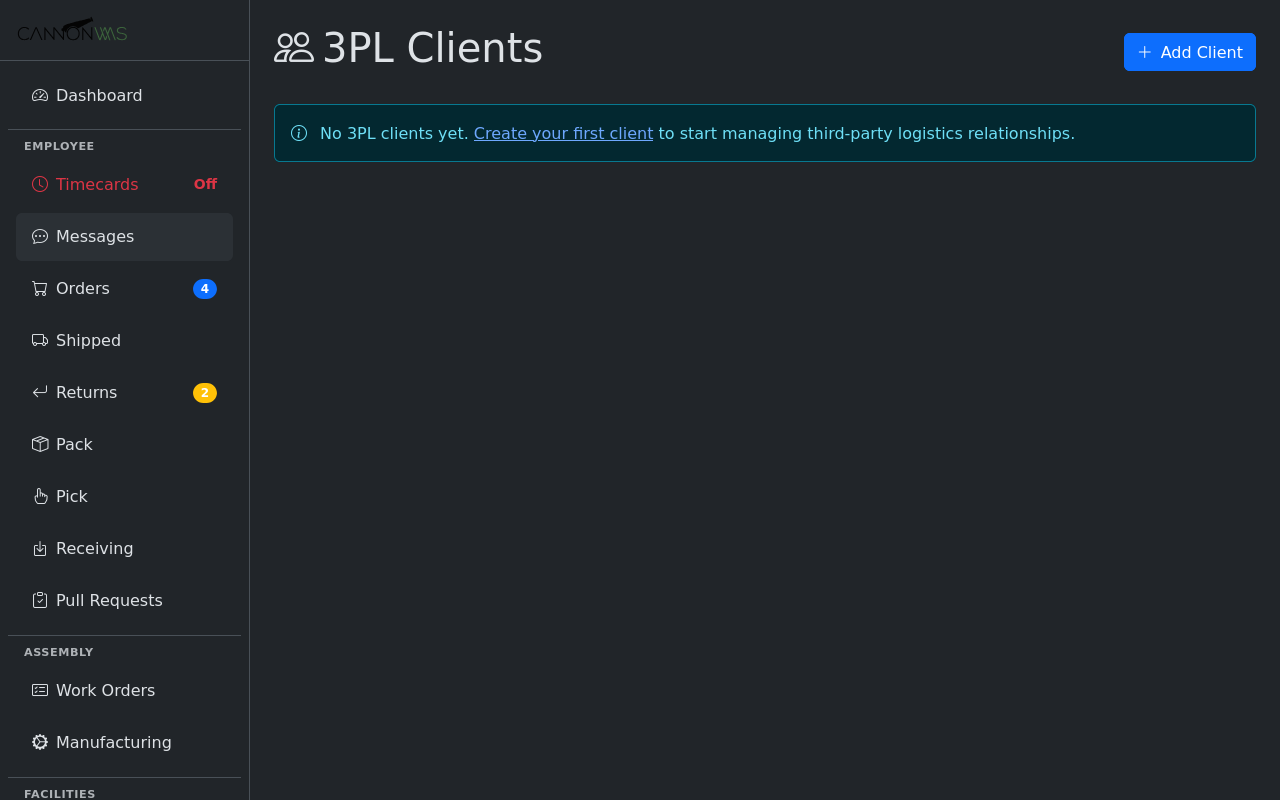
Create 3PL client accounts with branded portals. Each client gets a unique code (e.g., SNOW), contact info, logo, and brand color. Assign warehouses to the client and create portal user accounts so they can self-serve. Clients see only their own data — complete isolation from other clients in the same DC.
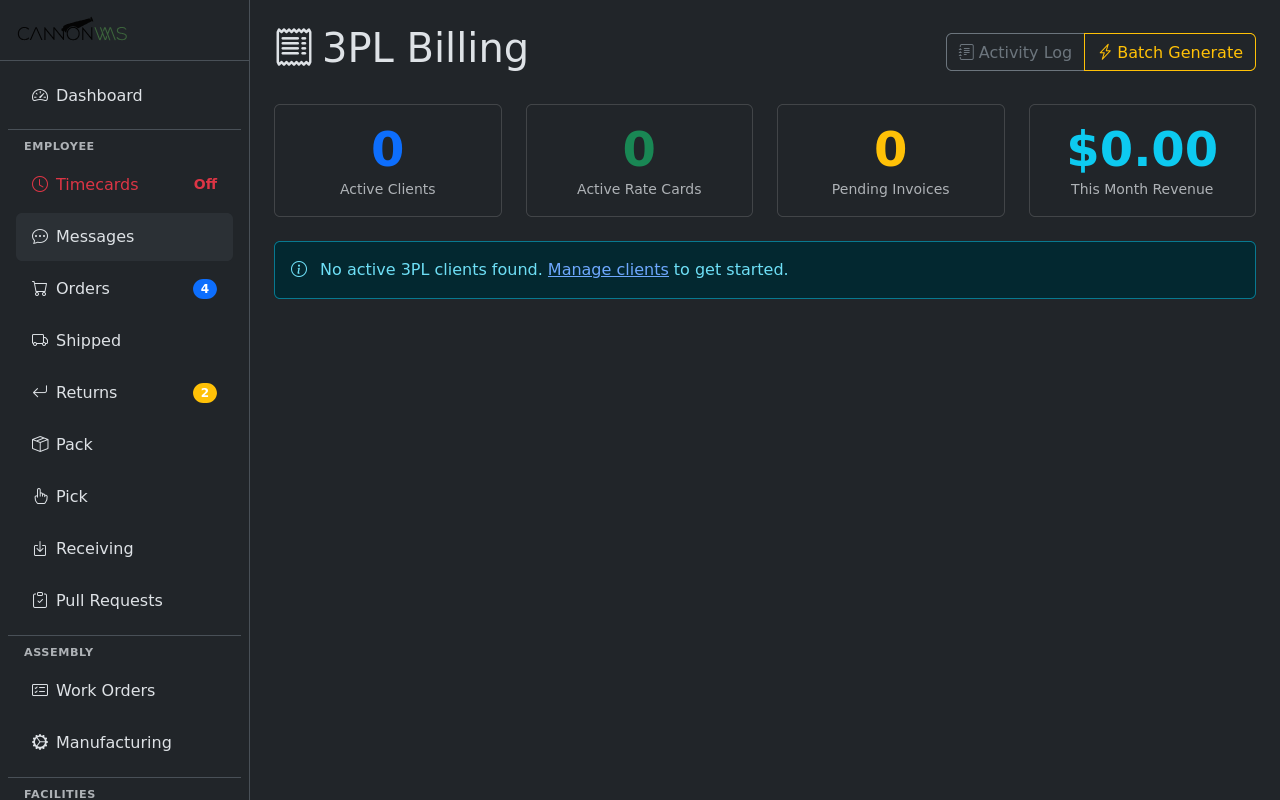
Generate invoices based on actual usage: storage (per pallet/bin/sqft), pick-and-pack fees, receiving charges, and special handling surcharges. Define per-client rate cards. Billing data tracks order volume, items shipped, and value-added services automatically.
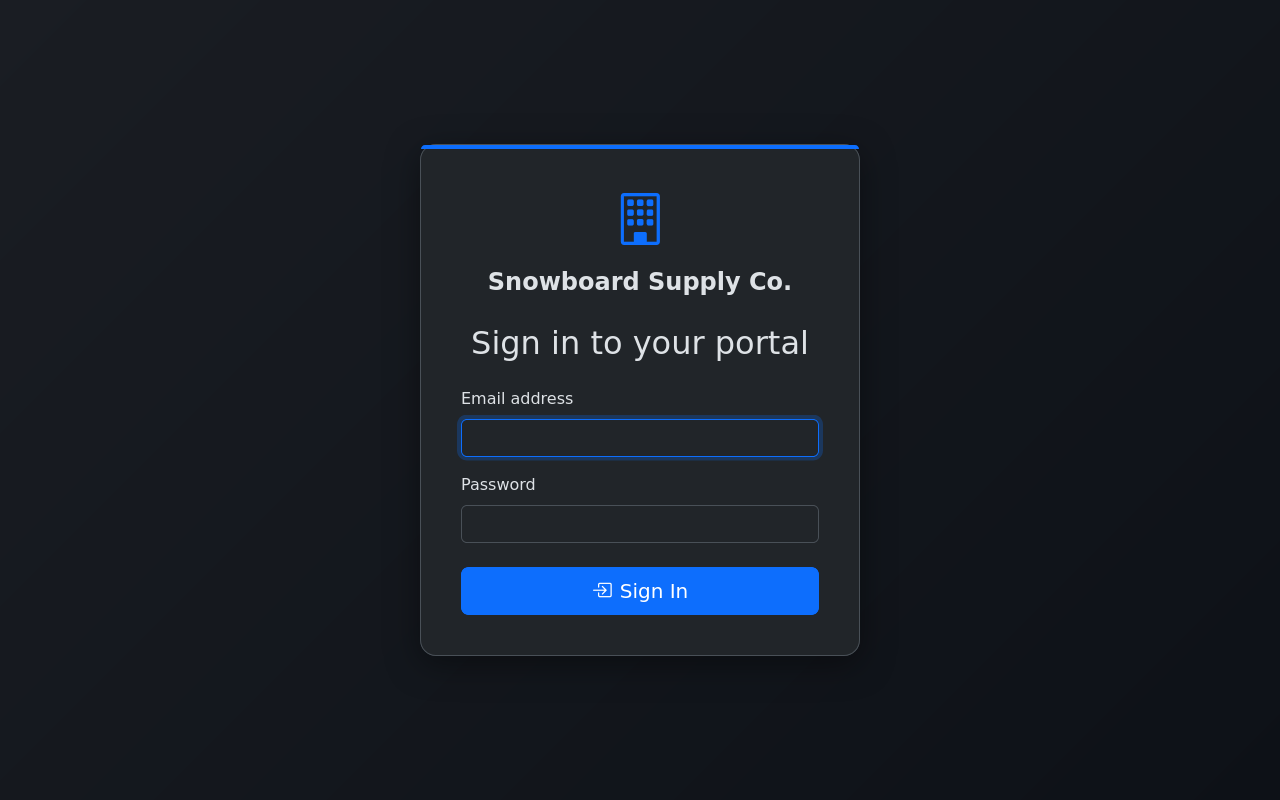
Each client gets a branded login page at their unique URL (e.g., /portal/login/SNOW). The portal displays the client's name, logo, and brand color. Portal users log in with their email and password — no access to the admin WMS interface, just their own data.
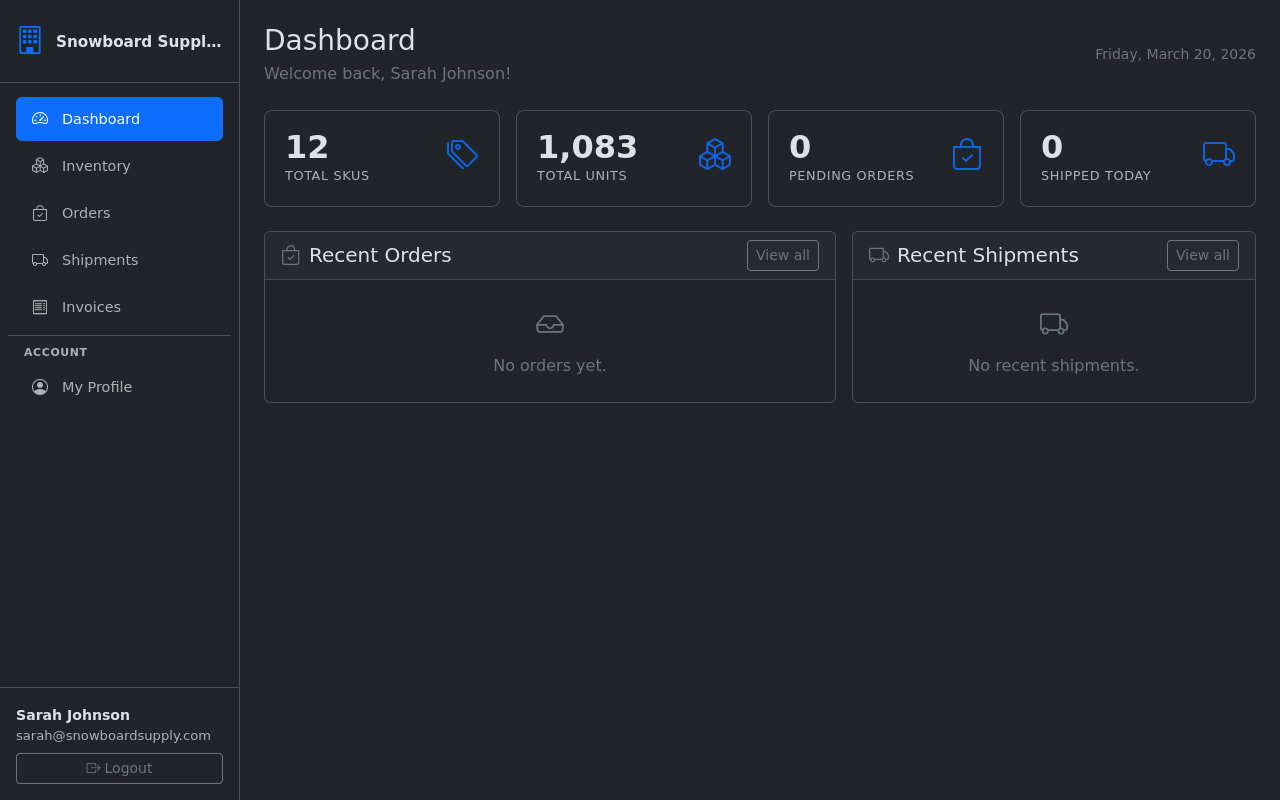
The client's portal dashboard shows key metrics at a glance: total SKUs in stock, total units, active orders, and recent shipments. The branded sidebar navigation gives them access to Inventory, Orders, Shipments, and Invoices — scoped to only their warehouse data.
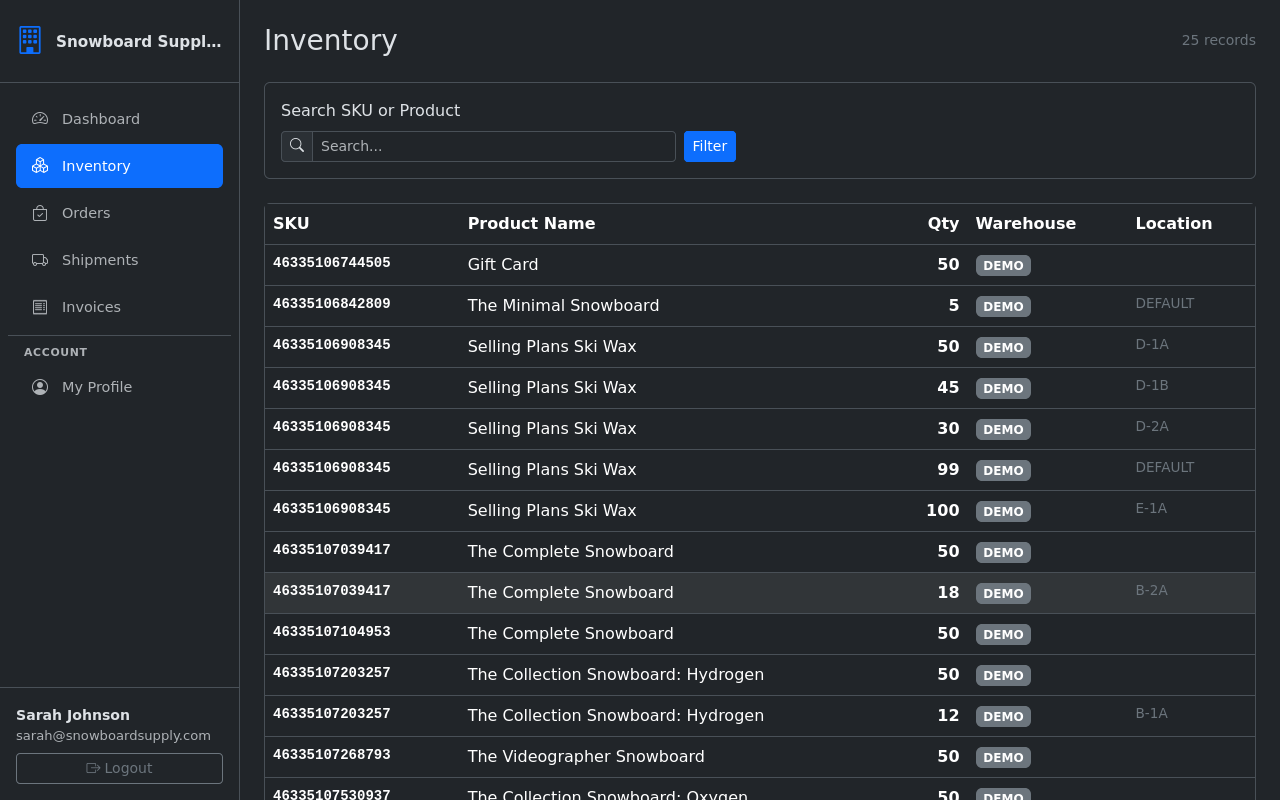
The inventory page shows every SKU the client has in their assigned warehouse, with quantities and bin locations visible (D-1A, D-1B, E-1A, B-2A, etc.). Clients can search by SKU or product name and see exactly where their stock is stored. This transparency builds trust and reduces support tickets about "where's my inventory?"
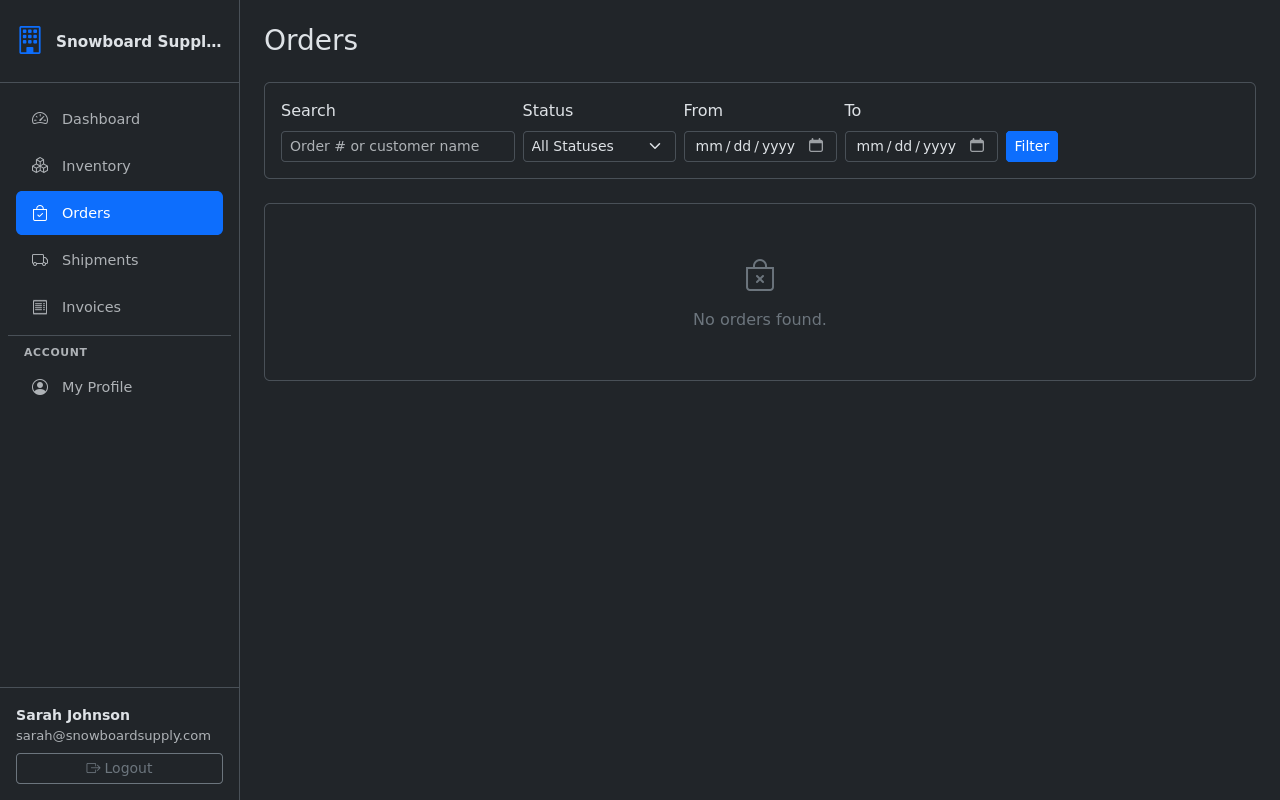
Clients track their orders from placed through shipped, with status badges, tracking numbers, and delivery dates. The shipments page shows carrier details and delivery confirmations. This self-service visibility means clients don't need to call or email for status updates.
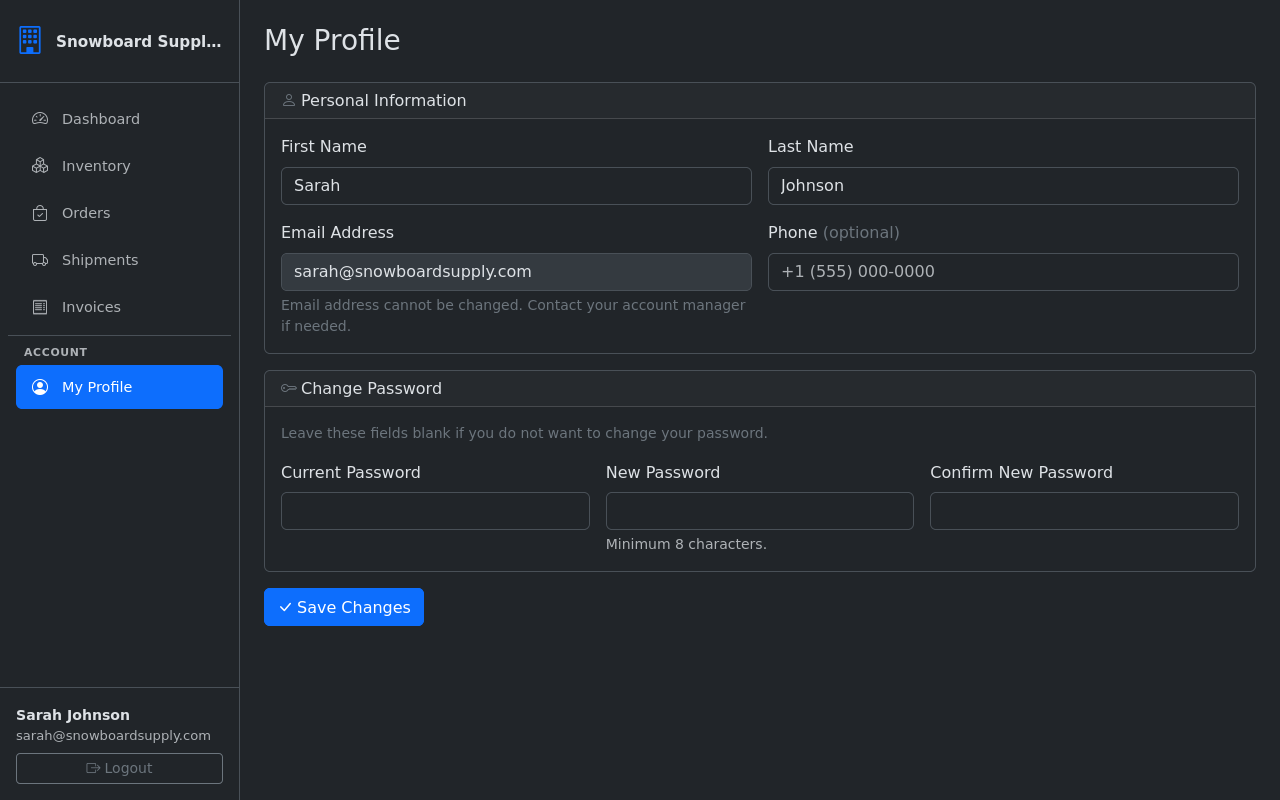
Portal users manage their own profile, change passwords, and update contact info. Multiple users can be created per client for different team members — each with their own login. The portal is fully responsive and works on mobile devices for on-the-go access.
Key Capabilities
- Group warehouses under DCs
- Floor space & pallet allocation
- Capacity utilization metrics
- Multi-client data isolation
- Branded client portal with login
- Client inventory with bin locations
- Order & shipment tracking
- Per-client billing & invoicing
Ready to scale your 3PL operation?
Enable Distribution Centers in your CannonWMS dashboard today.
Learn More