Walkthrough
Quick Enable
Enable in your CannonWMS dashboard:
Settings → Features → Floor Plans
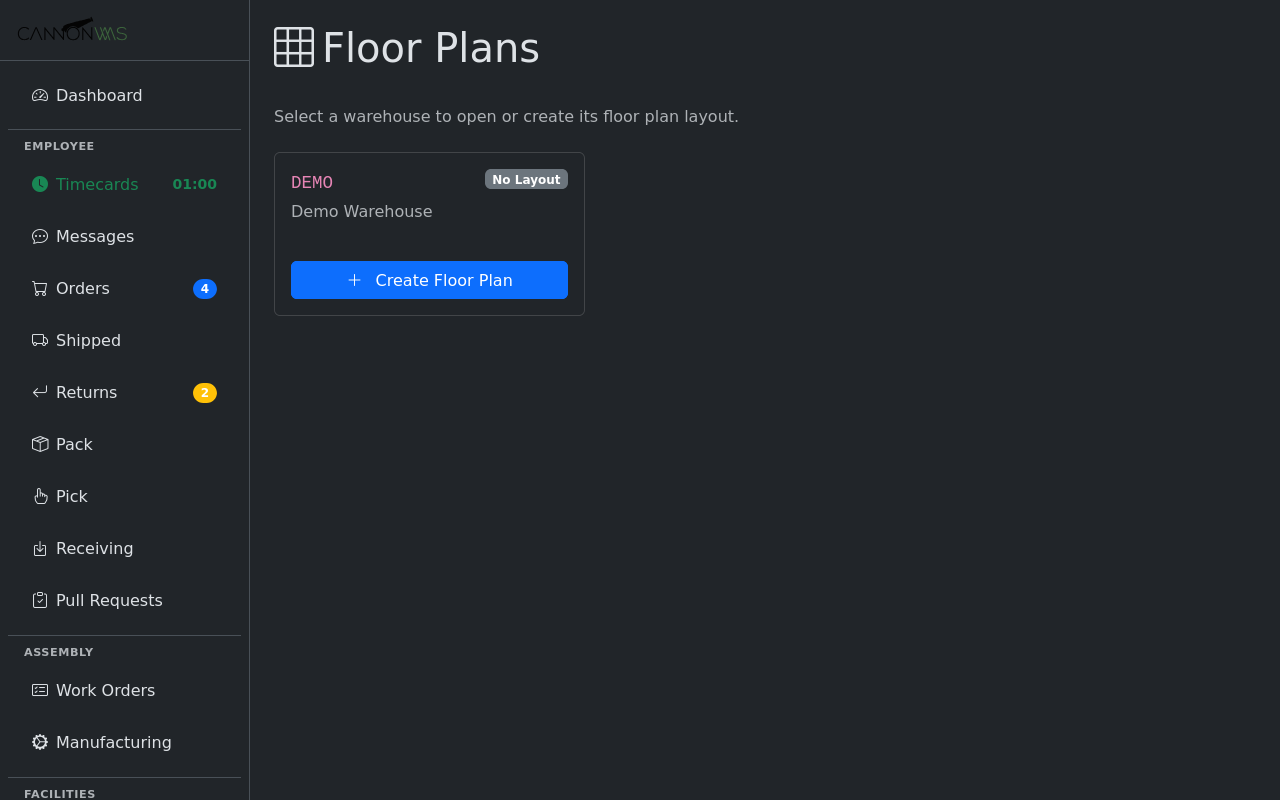
Each warehouse gets its own floor plan. The list page shows all warehouses with their floor plan status. Click a warehouse to open its editor.
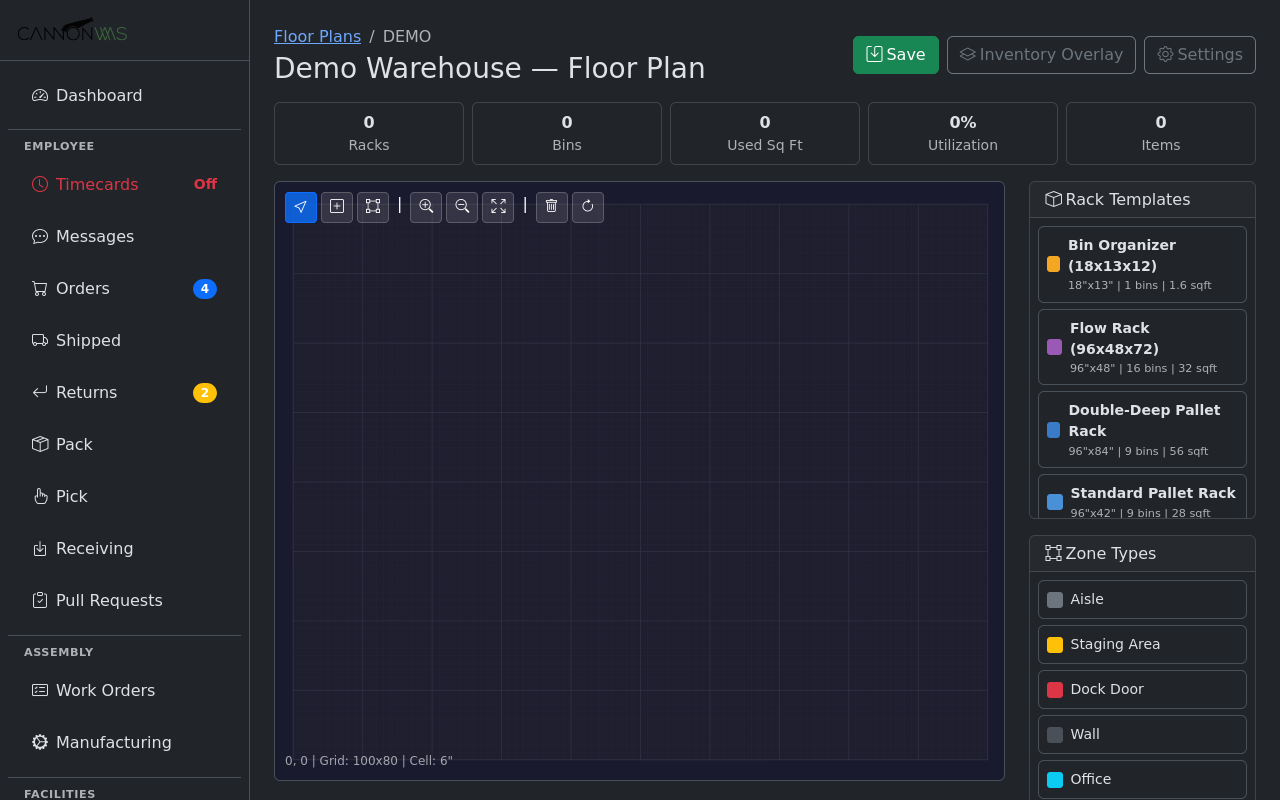
The editor opens with a blank grid scaled to your warehouse dimensions. The toolbar provides select, draw, and zoom tools. The right sidebar lists Rack Templates (Standard Pallet Rack, Flow Rack, Shelving, Bin Organizers) and Zone Types (Aisles, Staging Areas, Dock Doors, Walls, Office space). Stats at the top track racks, bins, sq ft, and utilization in real time.
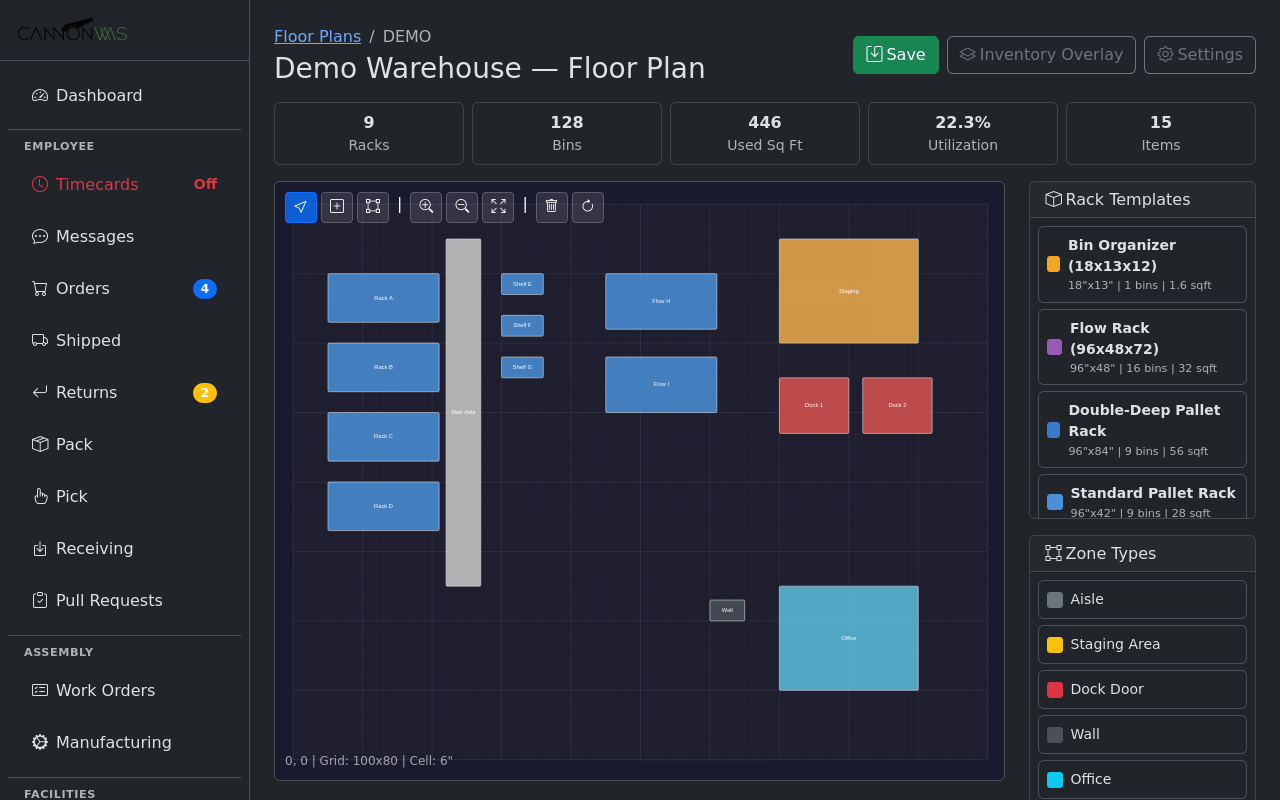
Drag rack templates from the sidebar onto the canvas. Here we've placed 4 Standard Pallet Racks (A-D), 3 Medium Shelves (E-G), and 2 Flow Racks (H-I), separated by a main aisle. Zones mark the staging area, two dock doors, and an office. The stats update automatically: 9 racks, 128 bins, 442 sq ft used, 22.1% utilization.
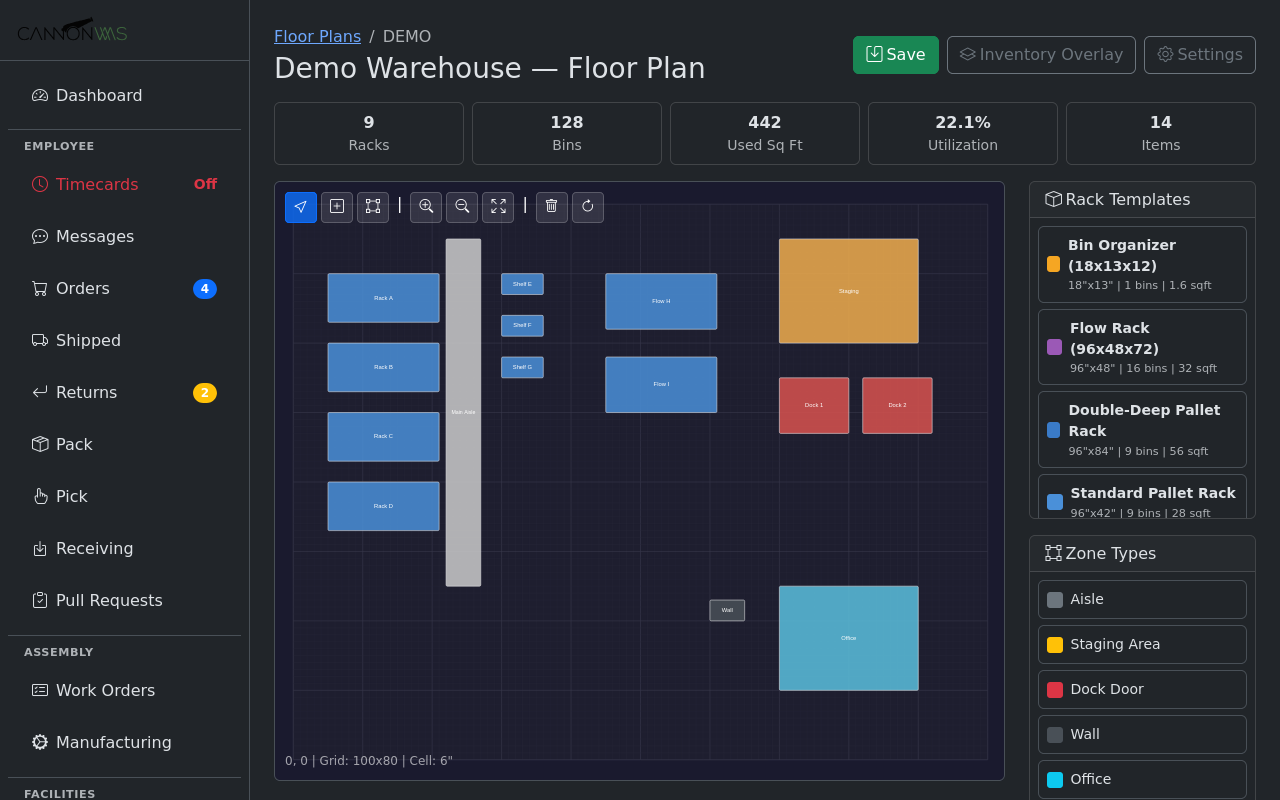
Adding new elements is as simple as dragging from the template palette. Snap-to-grid keeps everything aligned. You can resize racks by dragging their edges, rotate them, or move them after placement. Each rack auto-generates a location prefix (A, B, C...) used for bin naming throughout the WMS.
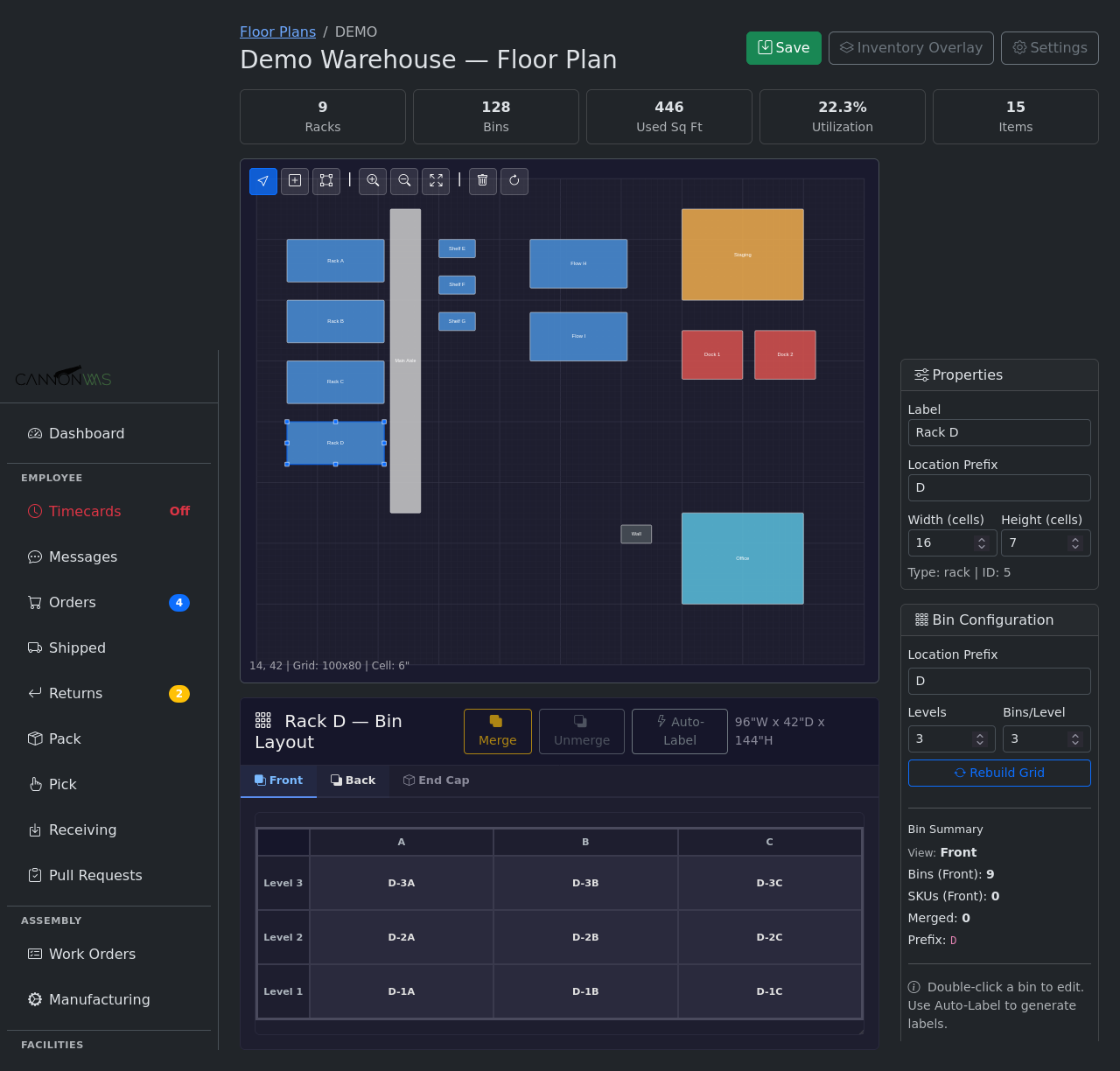
Click any rack to open its detail panel. The Properties panel shows label, location prefix, and dimensions. The Bin Configuration lets you set levels and bins per level. Below, the Bin Layout grid shows every bin (e.g., D-1A, D-2B, D-3C) with Front, Back, and End Cap views. Double-click a bin to assign a SKU. Use Auto-Label to generate location codes automatically, or Merge bins for oversized items.
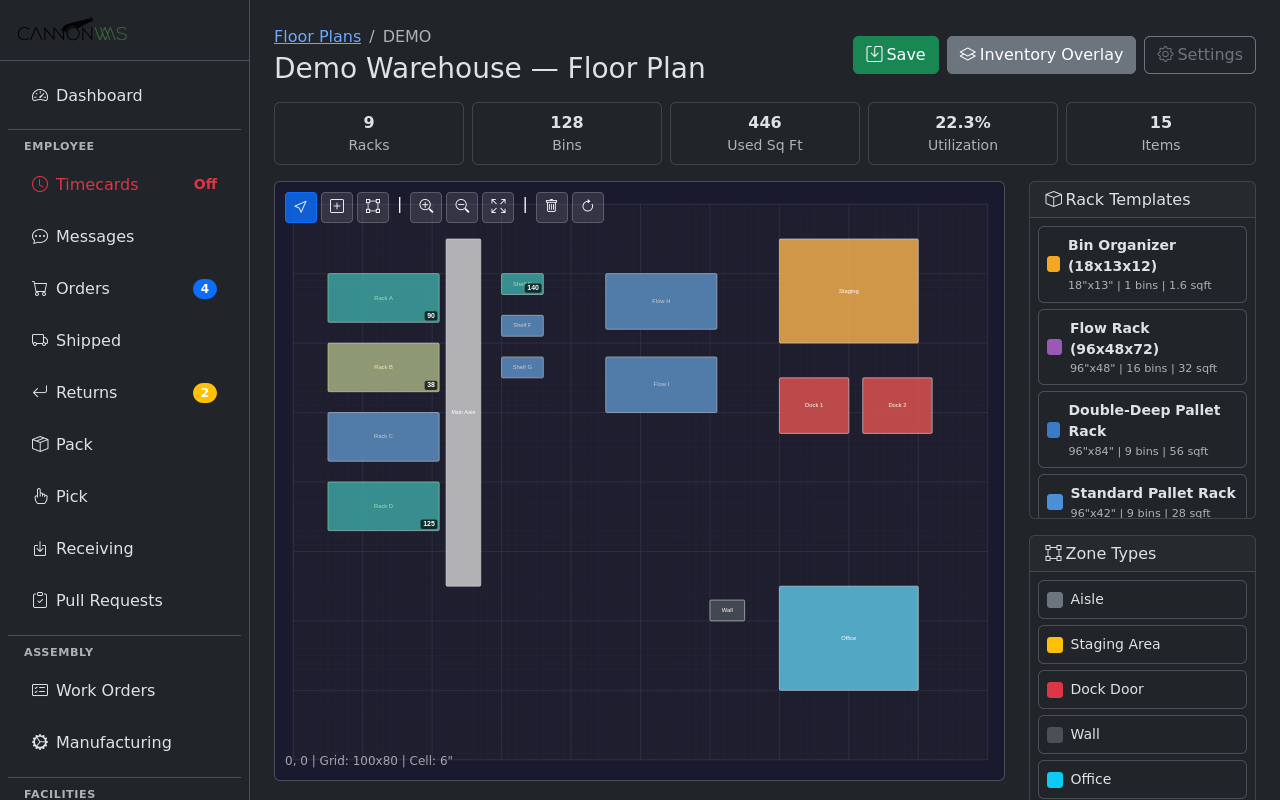
Click Inventory Overlay to see real-time stock levels on the floor plan. Racks with inventory show a color-coded fill: green for well-stocked, yellow for partial, and gray for empty. A quantity badge in the corner shows total units per rack. This gives managers an instant visual of where inventory is concentrated and where capacity is available.

The read-only view mode shows the floor plan without edit controls — ideal for warehouse staff who need to reference the layout during picking, put-away, or cycle counts. For 3PL operations, the floor plan feeds directly into capacity tracking and client billing by calculating actual floor space consumed per client.
Key Capabilities
- Drag-and-drop rack placement
- Bin-to-location mapping
- Capacity visualization
- Heat maps for utilization
- Multiple floor plans per warehouse
- 3PL billing integration